Managing PDF files, such as editing text, completing forms, or adding annotations, can be challenging when most solutions require registration or login. While desktop editors offer robust features, installing software or creating an account is often impractical for simple tasks.
This guide walks you through eight online PDF editors that work instantly in your browser with no signup required. We’ve tested each tool’s limits, usage caps, privacy behavior, and real editing capabilities so you can choose the one that fits your task without surprises.
1. PDFgear
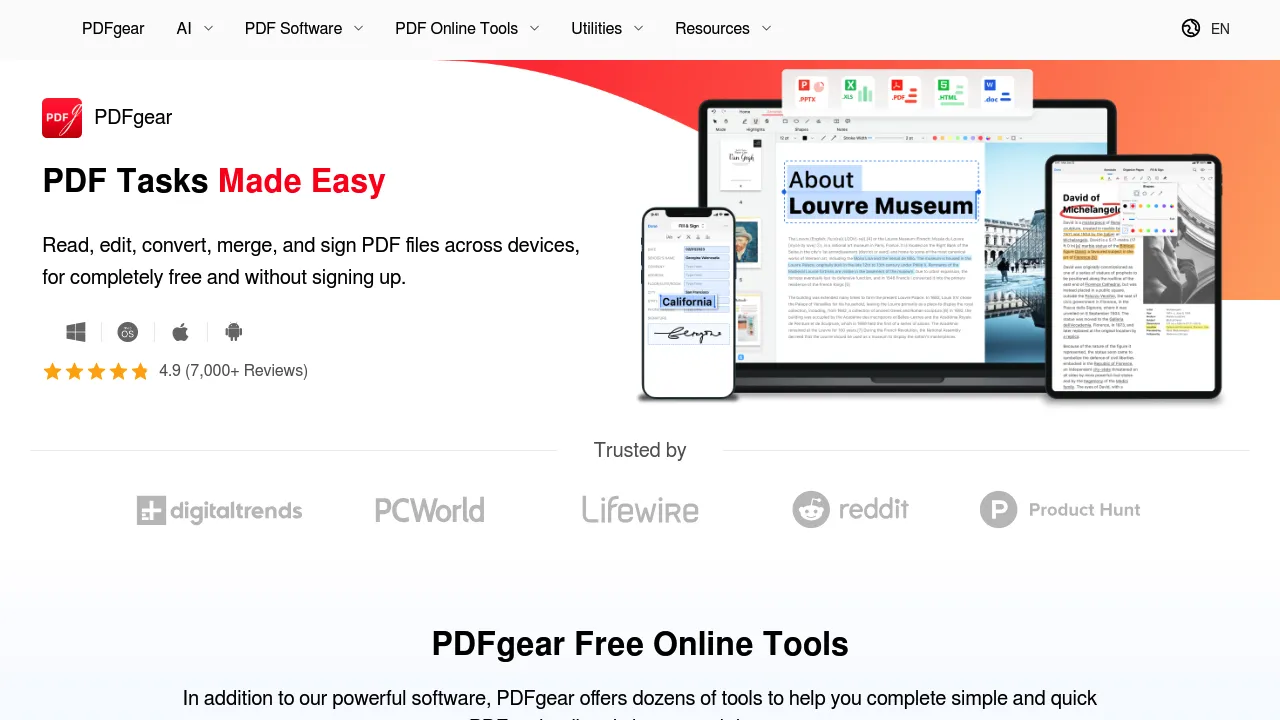
PDFgear’s online PDF editor lets you adjust and annotate documents directly in your browser with no login, watermark, or task limits. Files are handled securely in the browser with encrypted processing, reducing the need for persistent uploads. The web interface is intuitive for common editing tasks, though some deeper layout or text replacement workflows are more fully realized in their free desktop software.
Features
- Add text, annotations, highlights, shapes, and form fields.
- Merge, split, and reorganize pages using browser tools.
- Compress and convert PDFs to and from other formats.
- Fill out interactive PDF forms and add digital signatures.
Considerations
- Advanced editing options are more restricted in the online version.
- Very large or graphic-heavy PDFs may impact performance.
- The web editor has a 100 MB file size limit per document.
2. Sejda PDF Editor
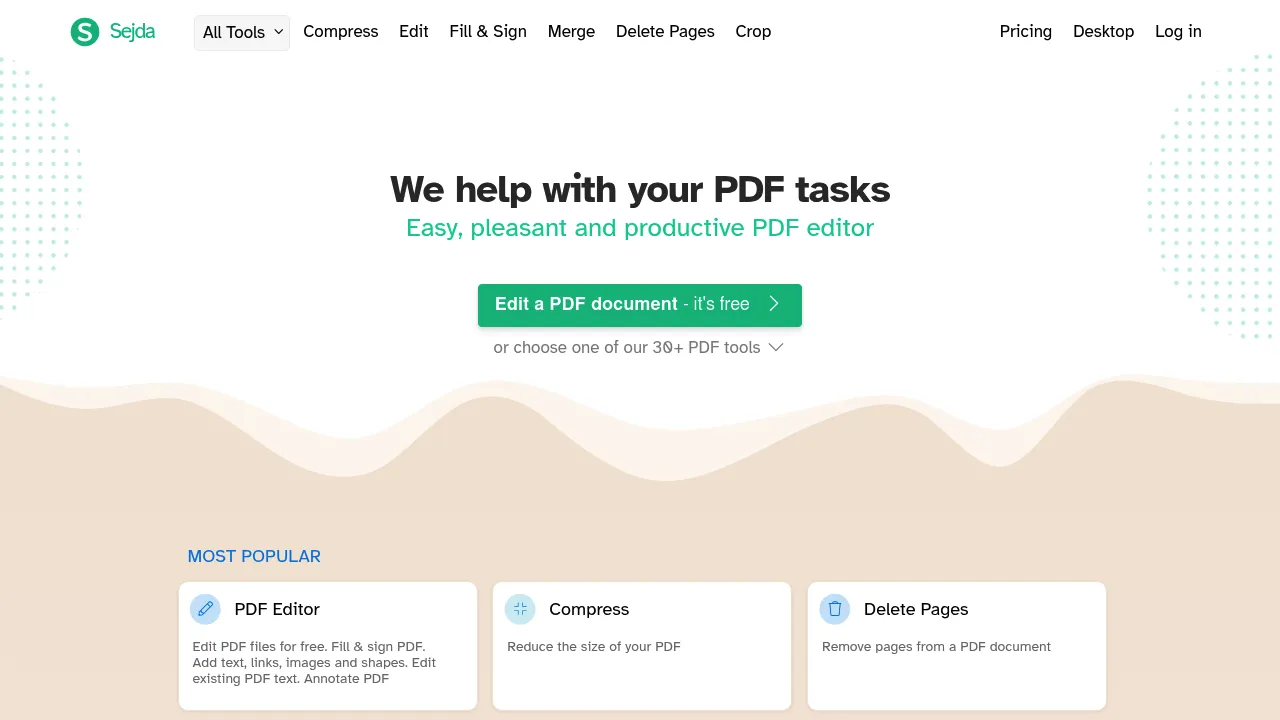
Sejda offers a well-rounded web editor that covers core editing tasks like text addition, image insertion, links, shape tools, and form filling entirely in the browser. Uploaded files are encrypted and automatically deleted after two hours, which is reassuring for confidential documents. Free usage is limited by size (50 MB/200 pages) and three tasks per hour, so it’s excellent for casual or one-off edits but not heavy multi-file workflows.
Features
- Edit text, add annotations, and fill or sign forms with ease.
- Convert to and from various formats including Word and images.
- Includes tools for links, bookmarks, and page management.
- Secure processing with encrypted uploads and auto-deletion after two hours.
Considerations
- Free tier allows files up to 50MB or 200 pages, with three tasks per hour.
- Tasks like OCR and certain batch operations require a paid plan.
- Complex or graphics-heavy PDFs may process slowly.
3. PDFescape
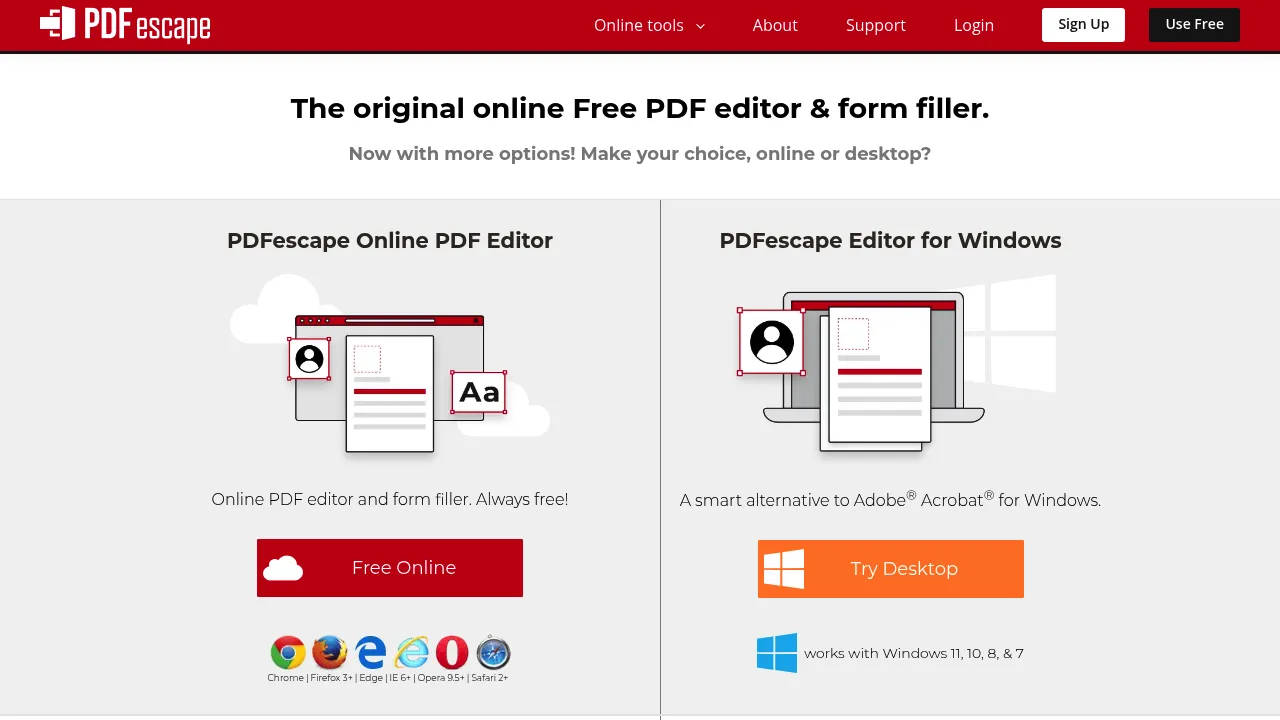
PDFescape is a long-standing browser-based PDF editor that focuses on basic document editing and annotation without requiring an account or software installation. It handles common tasks such as adding text, shapes, and notes, filling out forms, and applying simple markup directly in the browser. The free version is suited for quick, straightforward edits, while more advanced text manipulation and conversion tools are reserved for its premium or desktop offerings.
Features
- Edit existing text and add new text blocks anywhere on the page.
- Comprehensive form creator and filler with various field types.
- Insert shapes, lines, stamps, and images; add annotations and links.
- Manage pages (insert, delete, reorder, rotate) and print documents.
Considerations
- Best for lightweight tasks and small files (under 10 MB/100 pages).
- Interface feels dated and includes ads in free mode.
- Some advanced features require a paid plan or desktop app.
4. PDF24 Tools
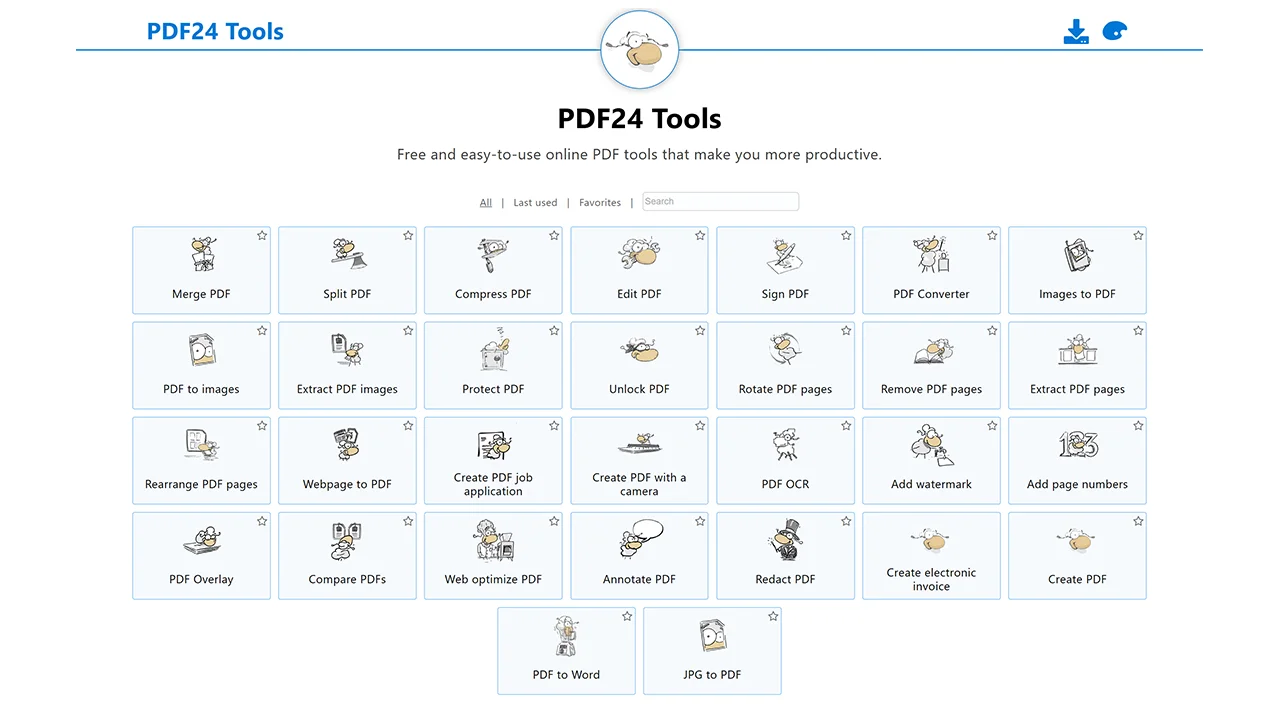
PDF24 Tools is an all-in-one suite of 30+ web-based PDF utilities – from editing and signing to merging, splitting, compressing, and converting files. Everything runs directly in your browser with no signup required. The modular layout makes it easy to pick just the tool you need, whether for quick tweaks or full document workflows. It’s an excellent choice for privacy-conscious users who need a trustworthy tool for standard edits.
Features
- Over 30 PDF tools including editing, OCR, and full format conversions.
- Unlimited, free access for all tasks with encrypted online processing.
- Works seamlessly across desktop and mobile browsers.
Considerations
- Interface is utility-focused rather than a polished editor.
- Ad-supported; offline desktop version available for sensitive documents.
- Best for general versatility rather than precise layout editing.
5. DocFly
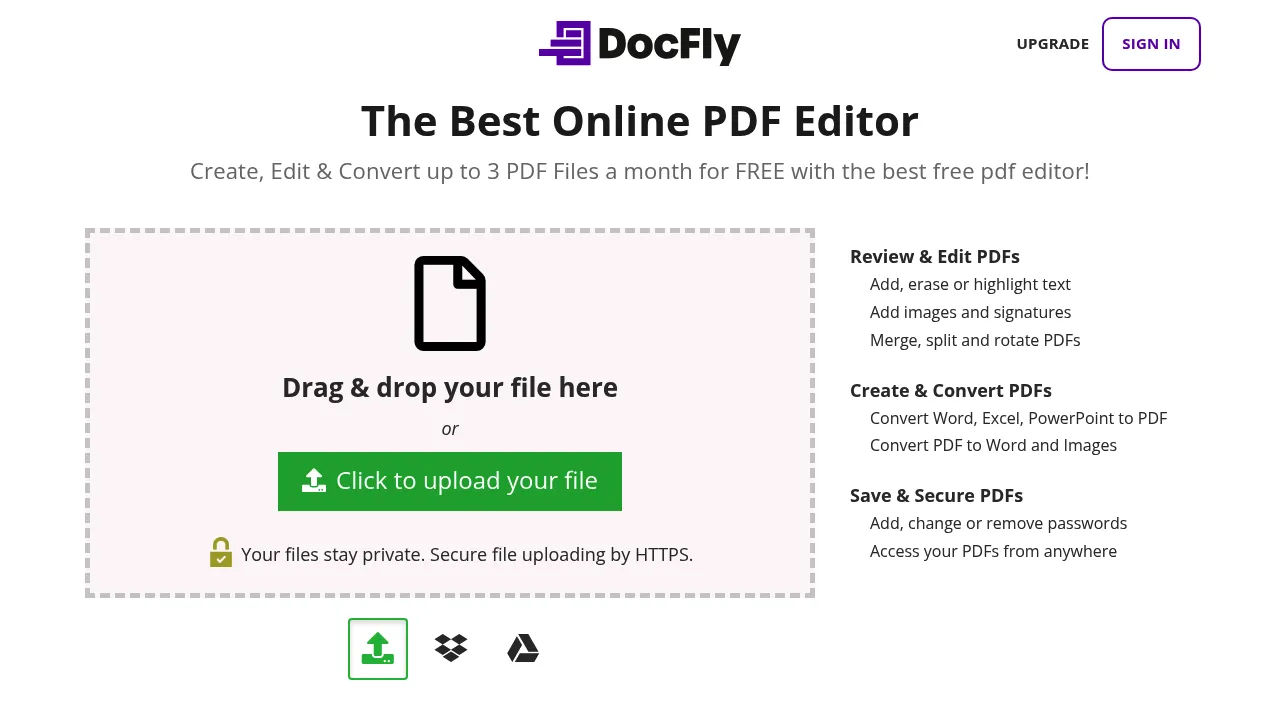
DocFly provides a fast, streamlined editing experience with a focus on core tasks. Its interface is minimal and intuitive, getting you to the editing functions quickly. It performs well for common needs like merging, splitting, and light text editing. While it encourages account creation for extra features, its essential toolset remains available for one-off use without a login, making it suitable for quick, simple edits.
Features
- Edit, merge, split, rotate, and convert PDFs directly in your browser.
- Add e-signatures, highlights, and watermarks with simple controls.
- Secure uploads over HTTPS with reliable privacy handling.
Considerations
- Limited to three exports per month in the free plan.
- Larger or complex files may require a paid upgrade.
- Best suited for light to moderate, occasional edits.
6. PDF Candy
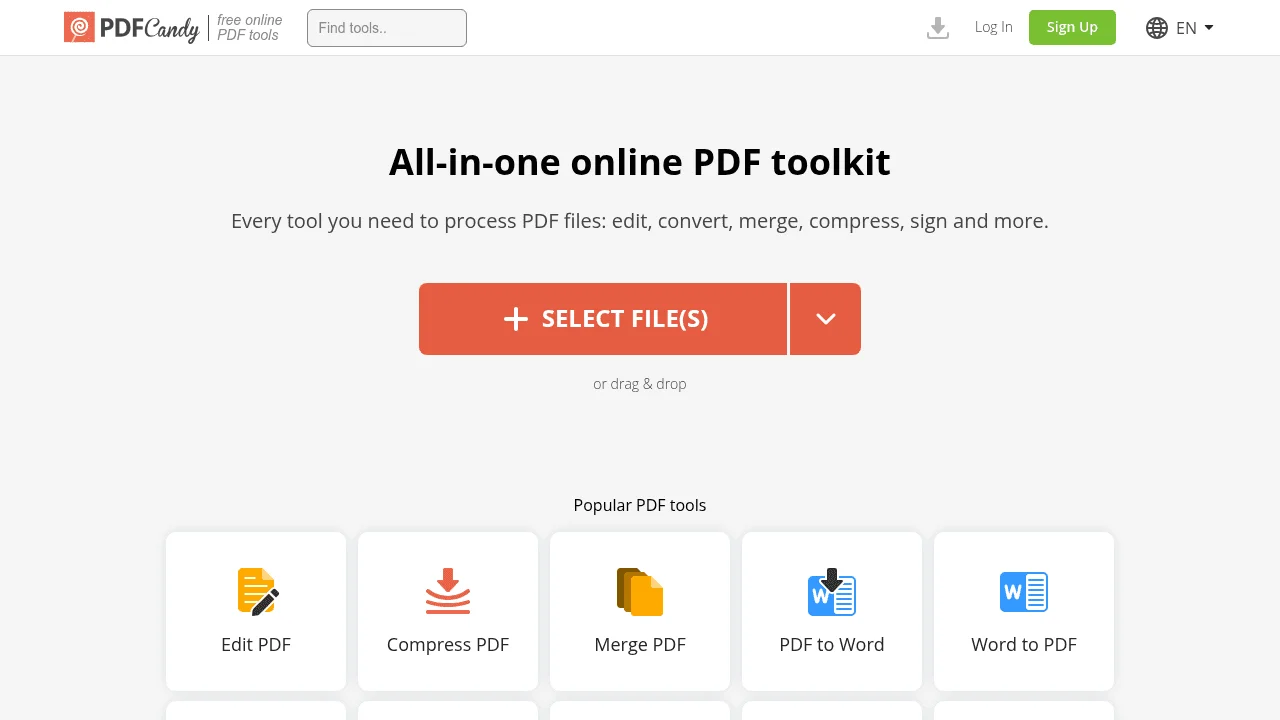
PDF Candy operates more as a comprehensive suite of single-purpose utilities than a unified editing workspace. Its strength is providing a direct, focused tool for nearly any PDF task – from editing and signing to conversion and OCR – all through a clean, step-by-step interface in your browser. This modular design makes it exceptionally easy to accomplish one specific job, though it can feel less fluid for multi-step editing sessions that require switching between different functions.
Features
- 90+ PDF utilities covering editing, conversions, OCR, and compression.
- GDPR-compliant processing with auto-deletion after two hours.
- Supports Word, Excel, JPG, and batch conversions with good speed.
Considerations
- Free mode limits file size and tasks per hour.
- Editing UI is functional but less refined than dedicated editors.
- Excellent versatility, but heavy use may require upgrading.
7. LightPDF
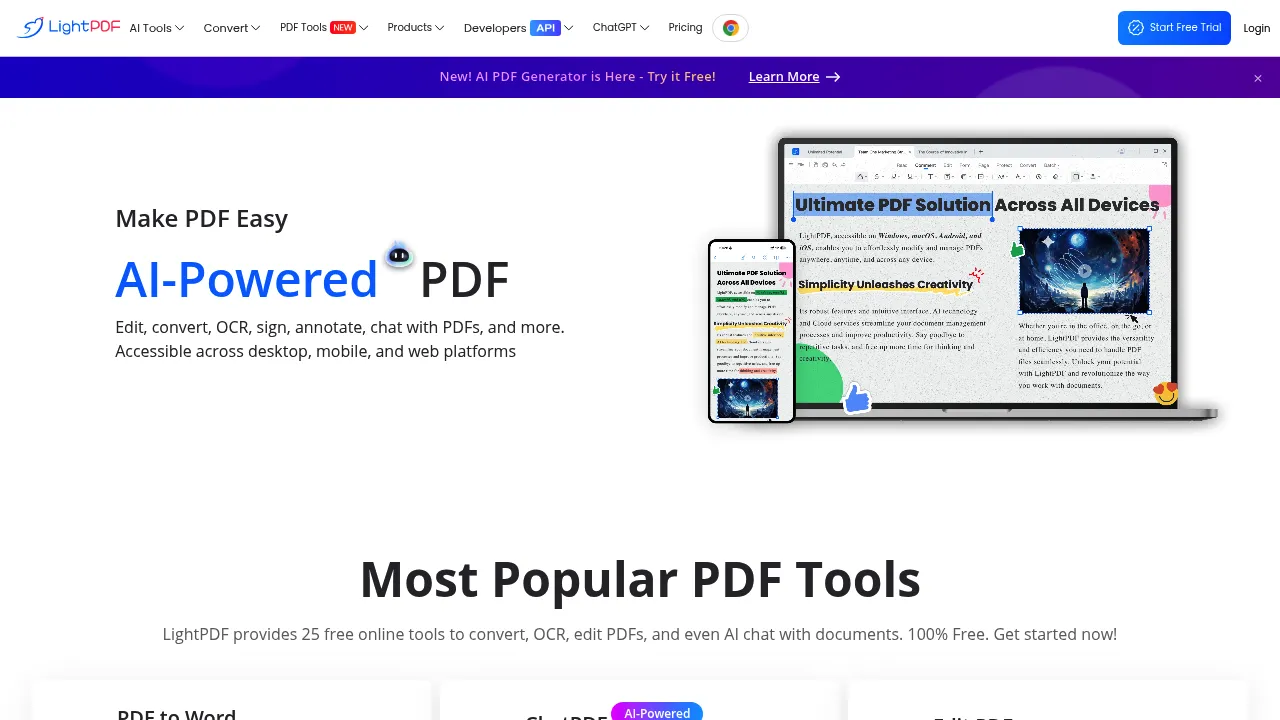
LightPDF is a browser-based PDF editor designed around quick visual edits rather than deep document restructuring. It allows users to add text, images, highlights, and annotations directly in the browser, with no plugins required. The interface is clean and responsive, making it suitable for marking up documents or making light adjustments. However, many tools emphasize conversion and auxiliary utilities, and prompts to create an account appear when accessing more advanced features.
Features
- 25+ PDF utilities including merging, converting, and compression.
- Text, image insertion, highlighting, and annotation tools.
- OCR and AI chat for document insights and summaries.
Considerations
- Some advanced features are locked behind a registration prompt.
- The free version has file size and page count restrictions.
8. PDF Bob
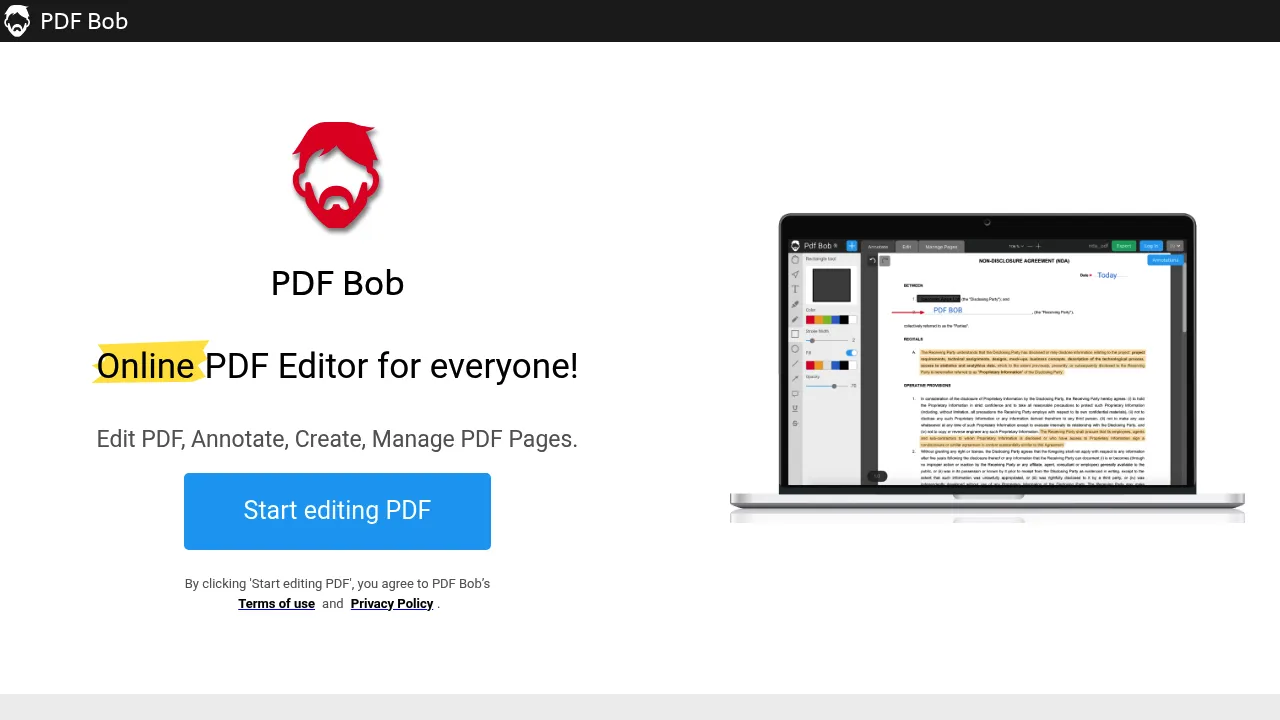
PDFBob is a straightforward in-browser PDF editor that handles text, images, annotations, and page management without requiring an account. It also offers page rearranging and basic PDF merging or splitting. Its no-upload mode keeps editing secure and local, making it ideal for private or offline work.
Features
- Fast, clutter-free interface for quick markups and page edits.
- Optional password protection and redaction for sensitive documents.
- Privacy-first workflow with minimal tracking or data storage.
Considerations
- Lacks advanced tools like OCR, conversions, or batch editing.
- Best suited for lightweight, local edits and simple document tweaks.
How to Choose the Right No-Signup PDF Editor
If you’re still not sure which tool fits your workflow best, here’s a quick comparison guide:
| Criterion | Why It Matters | Recommended Tools |
|---|---|---|
| File size / task limits | Frequent or large projects need generous quotas | PDFgear, PDF24 |
| Text editing depth | Some tools only overlay new text | Sejda, PDFgear |
| Conversion capabilities | Convert or batch-process formats easily | PDF Candy |
| Privacy & security | Local or encrypted processing | PDF Bob, PDFgear |
| Mobile experience | Clean layout and touch-friendly UI | LightPDF |
| Frequency of use | Unlimited vs. capped free exports | PDF24, PDF Candy |
Final Thoughts
The ability to edit a PDF directly in your browser without an account removes a significant point of friction for both casual and professional tasks. Each tool here offers a different balance of capability, limitation, and workflow. For robust, all-around editing, tools like PDFgear and Sejda are strong starting points, while specialists like PDFBob focus on a narrower set of tasks with minimal friction.
For more tools that prioritize instant access and privacy, explore our curated “Tools Directory”.